
Webflow Editor vs Designer: How Clients Can Manage Content Without Breaking the Design
Sound familiar? Your new website just launched. A week later, you want to update a promo headline or upload a new photo to your portfolio.
You log into the admin panel, try to insert the text, click "Save"... and the site breaks. Buttons shift downward, images overlap text, and the mobile version turns into a mess.
In a panic, you call the developer. They fix it (for an hourly fee) and say, "Please don't touch anything in there. Just send me the text in a Word document, and I'll update it for you."
This is how businesses become dependent. Every minor change costs time, money, and waiting.
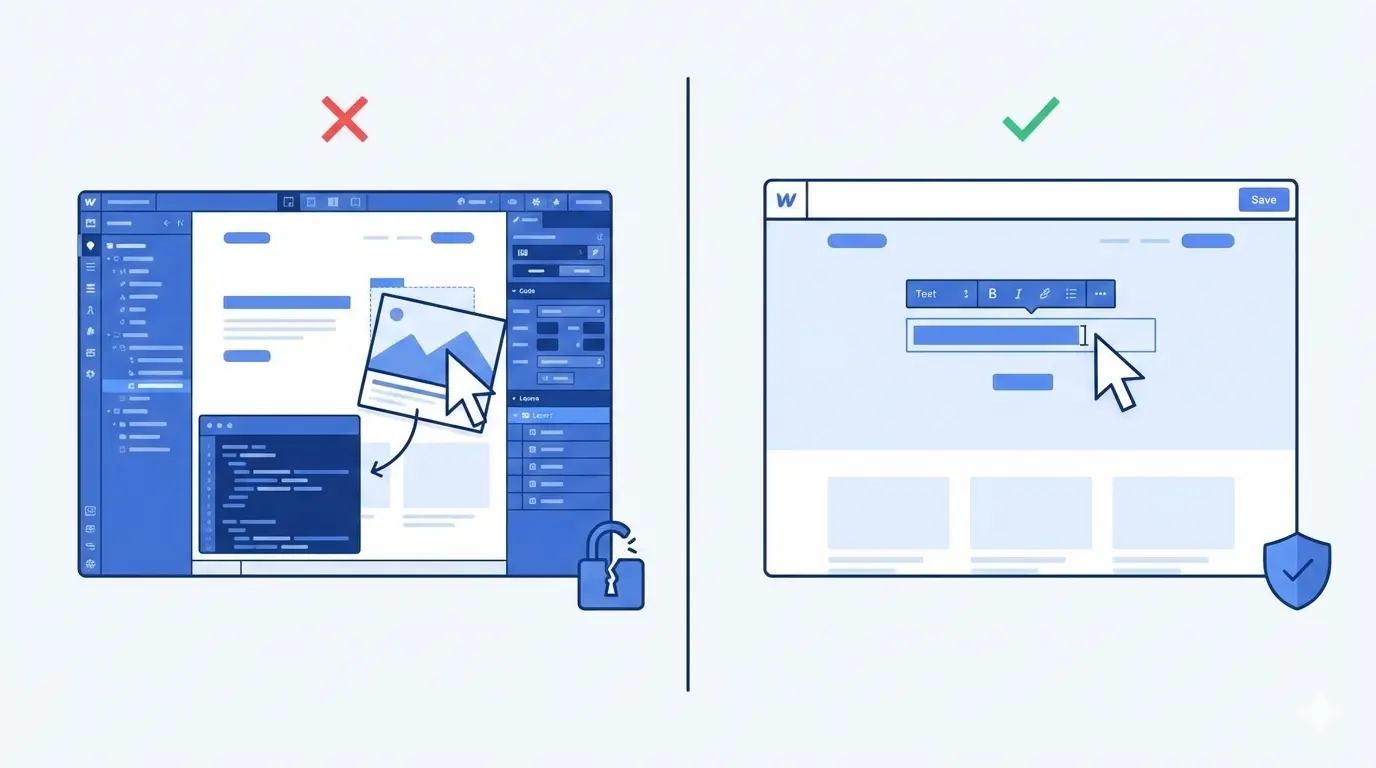
Webflow solved this problem radically by splitting website management into two completely different interfaces: Designer (for the developer) and Editor (for the client).
Let's break down why this makes Webflow the ideal choice for business.
1. Webflow Designer: The Cockpit
The Designer is the interface where your developer works.
It is a powerful control panel. This is where the structure (HTML) is built, the styling (CSS) is applied, and the animations (JS) are programmed. It houses thousands of settings: margins, typography, flexboxes, grids, and mobile breakpoints.
Why aren't clients allowed in here? Because it's a professional tool. It’s like an airplane cockpit: if you start pushing buttons without knowing what they do, you'll send the site into a tailspin. One incorrect margin change can break the layout across all pages simultaneously.
2. Webflow Editor: The Comfortable Passenger Seat
The Editor is a dedicated mode for the business owner, marketer, or content manager.
In this mode, there are no complex settings. No code. No ability to move blocks or alter the design.
How does it work? You go to your website, enter a password, and the site opens as usual, but a thin control panel appears at the bottom. You simply hover your mouse over any text, click, and type the new content. Just like in a Word document.
You hover over an image, click "Replace," and upload a new one from your computer.
What's the magic? Everything happens directly on the page (WYSIWYG — What You See Is What You Get). You instantly see how the new headline looks on the site. You don't have to write text in a backend panel, click "Preview," see that it looks crooked, go back, and fix it again (like in WordPress).
3. Why You Can't Break Anything (Foolproof Protection)
The main advantage of the Editor is restricted permissions.
- The Design is Locked: You cannot accidentally change the font from Arial to Comic Sans. You cannot repaint a button green if it's supposed to be red according to the brand book. You cannot shift a block 50 pixels to the left.
- The Structure is Locked: You cannot delete a crucial container that holds the entire page together.
What you CAN do in the Editor:
- Edit and format text (bold, italic, links).
- Replace images and icons.
- Add new blog articles, catalog products, or portfolio case studies (via the intuitive CMS tab).
- Update SEO settings (Title, Description, Open Graph) for every page.
4. Comparison: Who is Responsible for What?
5. How Does This Accelerate Business Processes?
Using the Designer + Editor combination saves money and nerves for both parties.
- For You (The Client): You don't have to wait for a developer to fix a typo or update pricing. You do it yourself in 30 seconds. You have peace of mind knowing that no matter what you click, the site won't fall apart.
- For the Developer: They don't get distracted from major tasks by minor edits. They deliver the project to you, record a 5-minute video tutorial on the Editor, and you gain complete freedom.
6. How Webflow Differs from Builders like Tilda and Wix
Businesses often choose DIY builders like Tilda or Wix thinking: "We'll hire a specialist to build the site, and then when it's done, we'll make edits and add content ourselves." This is an illusion—it's rarely that simple!
The interface of platforms like Tilda is not as simple as it seems. It varies between different sections and is completely different for custom blocks (Zero Block), acting like an editor within an editor. Tilda lacks a global stylesheet, meaning you cannot make a global change (like updating the style of all paragraphs or H2 headers) at once. Everything has to be done manually.
Because of this, you need significant knowledge and experience to make edits in Tilda without accidentally breaking the site. Maintaining a large site on Tilda is actually harder for both the developer and the client.
Conclusion
The Webflow Editor is the best example of technology becoming user-friendly. It’s a tool that gives businesses control over their content while leaving technical complexity to the professionals. This makes maintaining a website much more efficient. You can clearly separate roles: handle minor content updates yourself, and leave design fixes, animations, and major upgrades to the specialist.
Read new articles:









Рентабельные рекламные кампании в Яндекс.Директ
Настроим и будем вести контекстную и таргетированную рекламу для вашего бизнеса
Создадим систему привлечения новых клиентов
Уменьшим цену входящего звонка и заявки
Увеличим заказы на маркетплейсах: Ozon, Yandex Market, WB
Подготовим понятные отчеты и аналитику